We apologise, the site is under reconstruction and all features are only available in the test version.
How to install an indicator in MT4:
More
Step 1 Download the indicator
To download the indicator, go to the Free Indicators or Paid Indicators tab, select the indicator, click the ‘Download MT4’ button, and save the file to your computer’s hard drive. If the indicator is paid, unzip the file. In the resulting folder, there are 2 files: XXXX.ex4 and Instalation.exe. If it is a free indicator, only the XXXX.ex4 file will be saved after downloading.
Step 2
Open MT4, click on the “File” tab in the top left corner, and select “Open Data Folder,” then open the “MQL4” folder, followed by “Indicators”.
Step 3
Copy the XXXX.ex4 file into the “Indicators” folder.
Right-click on any indicator in the Navigator and select “Refresh.”
Installation of the free indicator is complete.
Step 4
Double-click on the Installation.exe file to start the DLL installation. Wait until the installer finishes its work.
Step 5
Activate the license. A detailed description of the activation can be found on the page below.
Less
How to install an indicator in MT5:
More
Step 1 Download the indicator
To download an indicator, go to the Free Indicators or Paid Indicators tab, select the indicator, click the “Download MT5” button, and save the file to your computer’s hard drive. If the indicator is paid, unzip the Zip file. In the resulting folder, there are 2 files: file XXXX.ex5 and Instalation.exe . If it is a free indicator, downloading it will only save the XXXX.ex5 file.
Step 2
Open MT5, click on the “File” tab in the top left corner, and select “Open Data Folder,” then open the “MQL5” folder, and finally “Indicators”
Step 3
Copy the file XXXX.ex5 to the “Indicators” folder.
Right-click on any indicator in the Navigator and select “Refresh”.
The installation of the free indicator is complete.
Step 4
Double-click on the Installation.exe file to start the DLL installation. Wait until the installer finishes its work.
Step 5
Activate the license. A detailed activation guide can be found on this page below.
Less
How to install an Expert Advisor in MT4:
More
Step 1 Download the Expert Advisor.
To download a Expert Advisor, go to the Free Expert Advisor or Paid Expert Advisor tab, select a Expert Advisor, click the “Download MT4” button, and save the file to your computer’s hard drive. If the Expert Advisor is paid, unzip the downloaded Zip file. In the resulting folder, there are 2 files: file XXXX.ex4 and Instalation.exe . If it is a free Expert Advisor , only the XXXX.ex4 file will be saved after downloading.
Step 2
Open MT4, click the “File” tab in the top left corner, and select “Open Data Folder.” Inside, open the “MQL4” folder, then “Experts.”
Step 3
Copy the XXXX.ex4 file to the “Experts” folder.
Right-click on any indicator in the Navigator and select “Refresh”.
Installation of the free Expert Advisor is complete.
Step 4
Double-click on the Installation.exe file to start the DLL installation. Wait until the installer finishes its work.
Step 5
Activate the licenses. A detailed activation guide can be found on this page below.
Less
How to install an Expert Advisor in MT5:
More
Step 1 Download Expert Advisor
To download Expert Advisor, go to the Free Expert Advisor or Paid Expert Advisortab, select a Expert Advisor, click the “Download MT5” button, and save the file to your computer’s hard drive. If the Expert Advisor is paid, unzip the Zip file. In the resulting folder, there will be 2 files: file XXXX.ex5 and Instalation.exe . If it is a free Expert Advisor, only the XXXX.ex5 file will be saved after downloading.
Step 2
Open MT5, click on the “File” tab in the top left corner, and select “Open Data Folder”. In it, open the “MQL5” folder, then “Experts”.
Step 3
Copy the XXXX.ex5 file to the “Experts” folder.
Right-click on any indicator in the Navigator and select “Refresh”.
Installation of the free Expert Advisor is complete.
Step 4
Double-click on the Installation.exe file to start the DLL installation. Wait until the installer finishes its work.
Step 5
Activate the licenses. A detailed activation guide can be found on this page below.
Less
How to install an Script in MT4:
More
Step 1 Download the Script
To download the Script, go to the Free Scripts or Paid Scripts tab, select a Script, click the “Download MT4” button, and save the file to your computer’s hard drive. If the Script is paid, unzip the Zip file. In the resulting folder, there are 2 files: file XXXX.ex4 and Instalation.exe . If it is a free Script, only the XXXX.ex4 file will be saved after downloading.
Step 2
Open MT4, click on the “File” tab in the upper left corner and select “Open Data Folder,” then open the “MQL4” folder, followed by “Scripts.”
Step 3
Copy the file XXXX.ex4 to the “Scripts” folder.
Right-click on any indicator in the Navigator and select “Refresh”.
Free Script installation completed
Step 4
Double-click on the Installation.exe file to start the DLL installation. Wait until the installer finishes its work.
Step 5
Activate the license. A detailed activation guide can be found on the page below.
Less
How to install an Script in MT5:
More
Step 1 Download the Script
To download the Script, go to the Free Scripts or Paid Scripts tab, select a Script, click the “Download MT5” button, and save the file to your computer’s hard drive. If the Script is paid, unzip the Zip file. In the resulting folder, there are 2 files: file XXXX.ex5 and Instalation.exe . If it is a free Script, only the XXXX.ex5 file will be saved after downloading.
Step 2
Open MT5, click on the “File” tab in the upper left corner and select “Open Data Folder,” then open the “MQL5” folder, followed by the “Scripts” folder.
Step 3
Copy the file XXXX.ex5 to the “Scripts” folder.
Right-click on any indicator in the Navigator and select “Refresh”.
Free Script installation completed
Step 4
Double-click on the Installation.exe file to start the DLL installation. Wait until the installer finishes its work.
Step 5
Activate the license. A detailed activation guide can be found on the page below.
Less
How to start a trial license
More
To use the trial license, you need to download the paid program as described above on this page. The Consumer should be registered in the Database. Registration can be done in the Customer area tab. Do not make any payment.
Step 1
Open MT4 or MT5 depending on which version of the program needs to be activated.
Step 2
Open a chart in the “Market Watch” panel for the instrument on which the program needs to be run.
Step 3.
Check in the Tools/Options/Expert Adisors panel whether the following options were selected:
a) Allow DLL import
b) Allow WebRequest for the listed URLs (applies to programs that use this option, and information about it can be found in the program description)
c) Allow automated trading (applies to Expert Advisors and Scripts)
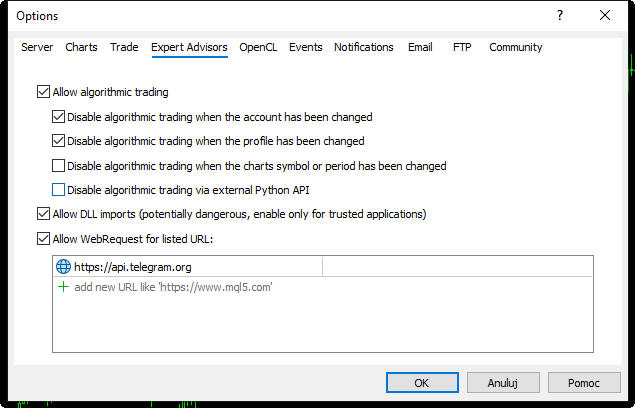
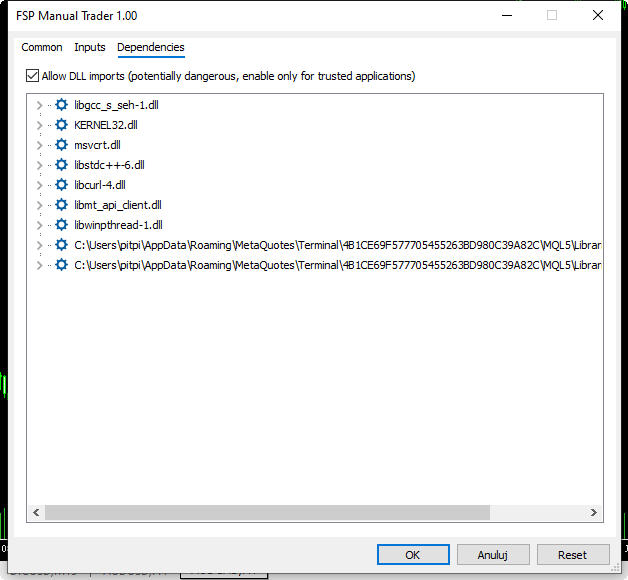
Step 4. Double-click the appropriate program in the Navigator or ‘grab’ the appropriate program in the Navigator and drag it onto the chart. As a result of these actions, the program’s settings panel will appear on the chart:
Step 5.
Check ‘Allow DLL imports’ in the ‘Dependencies’ tab.
In the “Inputs” tab, make the appropriate settings with which the program should be run and click ‘OK’ at the bottom of the settings panel.
Step 6.
Enter the email address and password associated with your Lockingood account into the program’s settings.
After starting, a window will appear: ‘Trial License request.’ ‘Do you want to create a trial license?’ with ‘Ok’ and ‘Cancel’ buttons.
Step 7. Press the “Ok” button. The app will check if it is possible to create a trial license for the Consumer. If the decision is positive, an “Activation device request.” window will appear:
“Do you want to activate license?” with “Ok” and “Cancel” buttons.
Step 8.
Press the “Ok” button. If the evaluation is positive, the Consumer will receive an activation notification via email. If the evaluation is negative, an alert will be generated and the program will stop working.
Less
How to activate a license:
More
To activate the license, the Consumer should be registered in the Database. Registration can be done in the Customer area tab.
Step 1
Open MT4 or MT5, depending on which version of the program needs to be activated.
Step 2
Open the chart in the “Market Watch” panel of the instrument on which the program needs to be run.
Step 3.
Check if the following options are selected in the Tools/Options/Expert Advisors panel:
a) Allow DLL import
b) Allow WebRequest for listed URLs (applies to programs that use this option, and information about it can be found in the program description)
c) Allow automated trading (applies to Expert Advisors and Scripts)
Step 4. Double-click the appropriate program in the Navigator or ‘grab’ the appropriate program in the Navigator and drag it onto the chart. As a result of these actions, the program’s settings panel will appear on the chart:
MT4:
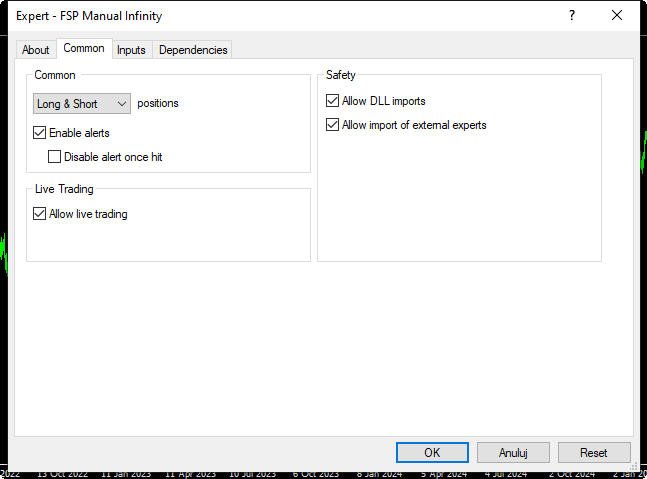
MT5:
Step 5.
In the “Dependencies” tab, check Allow DLL import.
In the “Input Parameters” tab, make the appropriate settings with which the program should be run and click “OK” at the bottom of the settings panel. A window called “Activation device request” will appear on the chart:
“Do you want to activate the license?” with “Ok” and “Cancel” buttons.
Important infirmation: If no license managed by the Lockingood system has previously been activated on the used computer, you must enter the email address and password associated with your Lockingood account in the “Inputs” tab.
Step 6.
Press the “Ok” button. The application will check if it’s possible to activate the program’s license for the Consumer in this environment. If the evaluation is positive, the Consumer will receive an activation notification via email. If the evaluation is negative, an alert will be generated and the program will stop working.
Less
Using certain Products requires a subscription to the Cluster Delta service. This information is always provided in the Product description. Costs associated with using the Cluster Delta service are not included in the final amount to be paid and should be paid separately on the Cluster Delta website. It is also necessary to download the required libraries (DLL) from the Cluster Delta website.
If you have not found answers to your questions on the Technical Support pages, please contact us by email at notifications@forex-softprogramming.com. We will get back to you as soon as possible.